

ElectroSeed MMWB RQR
12 in stock
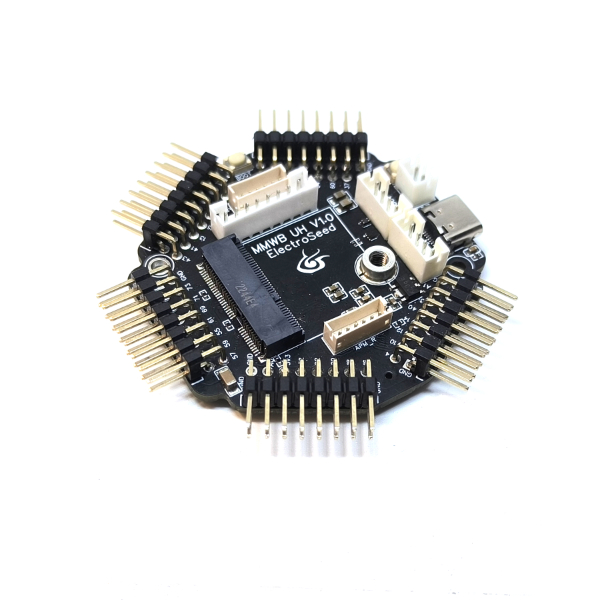
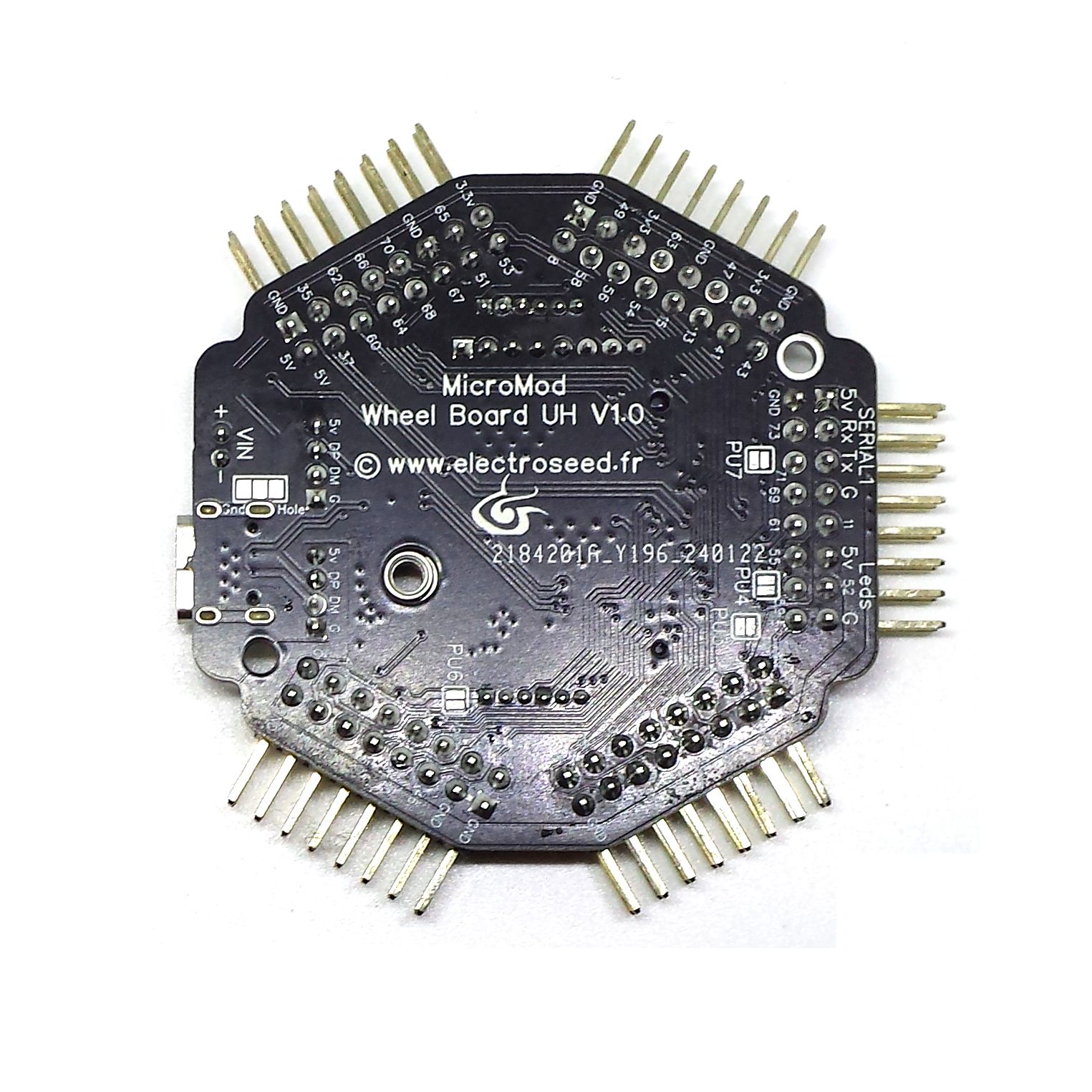
The MMWB RQR board (MicroMod Wheel Board Radio QR) allows you to connect radio daughterboards in MicroMod format and offers unique features. It’s ideal for wireless QR powered configurations (Bases Moza, Simagic ou Fanatec).
14,94 € incl. VAT (12,45 € excl. VAT)
Le Bodac est un montage qui permet de mettre en oeuvre plusieurs boutons sur une seule entrée analogique, tout en ayant la possibilité de les avoir appuyés en même temps. Le montage est simple : une résistance entre chaque borne des boutons, et un seul fil entre chaque bouton.
Ce pack de résistances de précision 1%, permet de réaliser un Bodac pour 5 boutons ou moins.
En choisissant un package NodeBlue, vous bénéficiez de la configuration de votre choix. Un formulaire de configuration vous sera envoyé après votre commande afin de préciser la programmation souhaitée. Ce formulaire est similaire à cette page, qui permet de tester si la configuration est possible. La carte sera programmée et testée en conséquence, et les schémas de câblage vous seront fournis. Si vous ne prenez pas de package, vous devrez programmer la carte vous même avec l'IDE Arduino. Plus d'information sur les différences entre le package standard et le package pro sont disponibles sur cette page.
12 in stock
| Weight | 0,02 kg |
|---|---|
| Dimensions | 1 × 1 × 1 cm |
Description
- Filters and protection circuits for USB input and output.
-
4 precision pull-up resistors on analog inputs to connect Bodacs, which allows you to put up to 20 buttons in addition to the other 39 remaining inputs.
-
8-pin JST 2.0 connector to connect natively to Fanatec bases (using our SRM Quick Release), and also to Thrustmaster bases (also possible by a 2×3 dupont connector).
- 2 x 6-pin JST 1.5 connectors for connecting 2 Fanatec APM paddles or any other system with up to 2 digital paddles and one analog paddle per port.
- A 2 pin JST 2.0 5v power connector to connect to the Simagic or Moza bases (thanks to our Simagic and Moza Quick Releases).
- A 4-pin JST 2.0 connector to easily connect an aviation connector for steering wheels operating in USB or a panel mount USB connector for wireless wheels (for battery charging or for firmware updates).
- A USB-C connector to program the board or connect a USB extension.
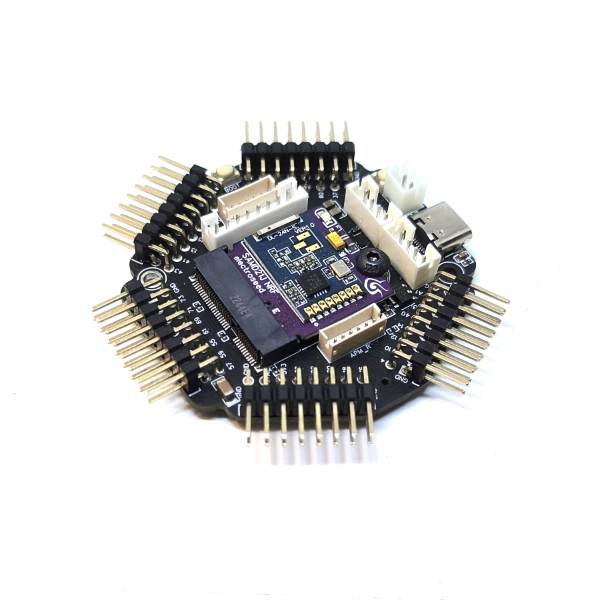
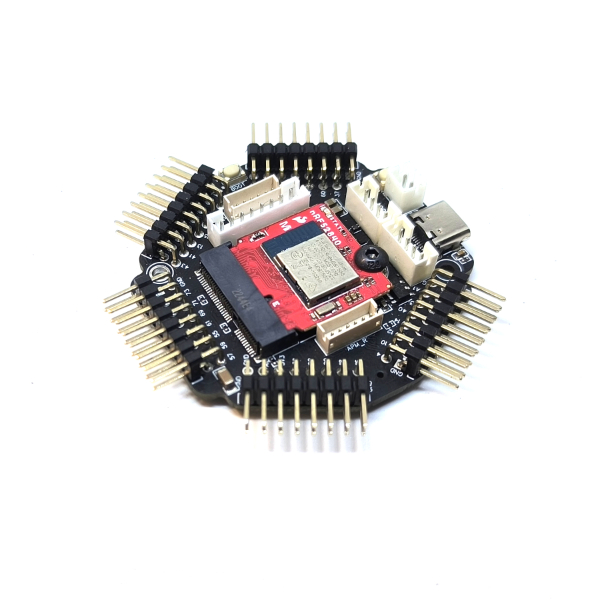
You’ll find below a table with the different daughter boards to help you choose the one corresponding to your needs. Only the SamD21J NRF daughter board can work at the same wirelessly and natively with a Fanatec or Thrustmaster bases. The management of Nextion screens, RGB LEDs and 7-segment displays is done using the SimHub software and will need a NRF Dongle to work wirelessly.
Schematics

Pinout

Tutorials
- Calibration with the serial monitor
- Click on the “Cal” input of the analog input module, the sensor module (eg AS5600) or the “Range” module. The module name can be “Accel”, “X”, “Y” or “Z”, or something else depending on the application. Once cal is pressed, a message appears in the serial monitor window. Follow the instructions.
- Once the calibration is complete, double click on the module to change the low and high deadband parameters. Check in the controller tab that when the axis is completely released the value is 0 and when it is fully released the value is 65535. Adjust the dead zones if necessary. Click on “Invert” if you need the axis to work in an inverted way.
- Manual Calibration (if the USB Virtual serial port is not present or used by another non compatible module)
- Double-click on the analog input module “X”, “Y” or “Z” (or any other name depending on the project) concerned by the axis.
- Position the axis to the minimum, copy the value displayed in the controller tab (adding a small margin), in the “In Min” parameter of the module.
- Position the axis to the maximum, copy the value displayed in the controller tab (by removing a small margin), in the “In Max” parameter of the module.
- change the low and high deadband parameters. Check in the controller tab that when the axis is completely released the value is 0 and when it is fully released the value is 65535. Adjust the dead zones if necessary.
Once each axis has been done :
- Save the project so that the settings are saved, either by using the “Save project” menu or with the CTRL-S key combination. If the project is read-only, use the “Save As” menu and choose another name.
- Select the com port among those detected (disconnect any other detected boards to be sure to program the board you want).
- Upload the project to the board (“Upload” button).
The settings are saved in the flash memory of the board and are restored at each restart.
Dimensions
3D Model (.obj Format) : https://www.electroseed.fr/docs/MMWB/MMWB_H_3DModel.zip
Related products
-
MicroMod
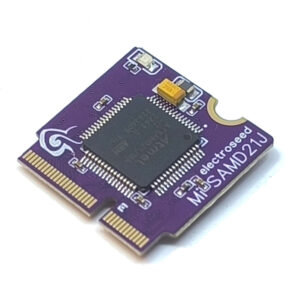
MicroMod SamD21J H
With a 32-bit ARM Cortex-M0 MCU, the ElectroSee MicroMod SAMD21 Processor Board provides you with the highest numer of inputs/outputs in the Micromod familly. It also includes a USB hub, and exposes the secondary port on the USB host connexions of the Micromod standard. This hub is compatible with the USB 2.0 480 Mb/s High Speed standard, and allows to connect reliably USB screens like Vocore screens.
The microcontroler used is an ATSAMD21J18, a 32-bit ARM Cortex-M0, running at 48 MHz, has 256 KB of flash memory, 32 KB of SRAM, 6 SERCOM interfaces, and other features.
Number of inputs/outputs : 50 including 20 analog.
SKU: 684 -
MicroMod
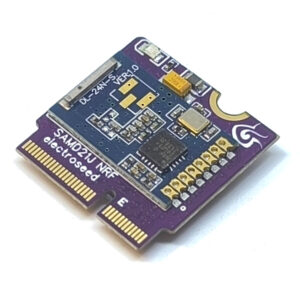
MicroMod SamD21J NRF
With a 32-bit ARM Cortex-M0 MCU, the ElectroSeed MicroMod SAMD21J NRF Processor Board provides a powerfull and versatile platform. With the NRF24L01 radio module and its ceramic antenna, make your wireless projecy easily with a maximum of inputs.
The ATSAMD21J18 used is a 32-bit ARM Cortex-M0, running at 48 MHz, has 256 KB of flash memory, 32 KB of SRAM, 6 SERCOM interfaces, and other features.
Number of inputs/outputs : 45 including 16 analog.
SKU: 677 -
Radio
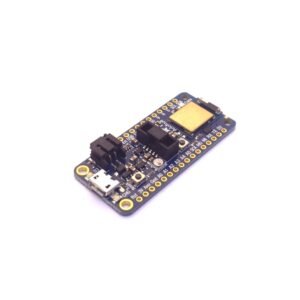
Adafruit NRF52840 Feather Express
This board enables connecting buttons, switches, encoders, potentiometers, rotary switches, joysticks and various sensors, to easily deploy wireless solutions.
An battery charging circuit allows you to power the board with a battery for embedded applications, along with an internal connexion in order to measure precisely the battery voltage, so you will know the charge that’s left.
SKU: 357 -
MicroMod
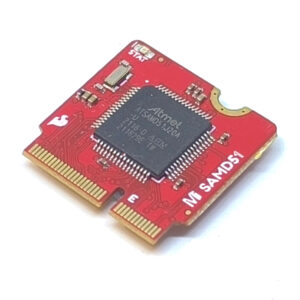
MicroMod SamD51
With a 32-bit ARM Cortex-M4F MCU, the SparkFun MicroMod SAMD51 Processor Board provides an economical and easy to use development platform if you're needing lots of power with minimal working space. With the M.2 MicroMod connector, connecting your SAMD51 Processor is a breeze. Simply match up the key on your processor's beveled edge connector to the key on the M.2 connector and secure it with a screw (included with all Carrier Boards). The SAMD51 is one of the most powerful and economical microcontrollers available so to be able to add it to your MicroMod Carrier Board is a huge advantage for your project!
The ATSAMD51J20 utilizes a 32-bit ARM Cortex-M4 processor with Floating Point Unit (FPU), running up to 120MHz, with 1 MB of flash memory, 256 KB of SRAM with ECC, 6 SERCOM interfaces, and other features
We have fixed a hardware bug on this board in order to be able to use the ADC for radiometric measures (potentiometers, etc.).
SKU: 606